
The export format changes how an Undertale text box is understood. A PNG feels like a screenshot. A GIF feels like a reaction. An MP4 feels like a tiny scene, especially when typing sound matters.
The current Undertale text box generator supports all three paths: PNG, GIF, and MP4. This guide explains when each format makes sense, how to prepare the line before exporting, and what to check so the final post does not look cramped or broken.
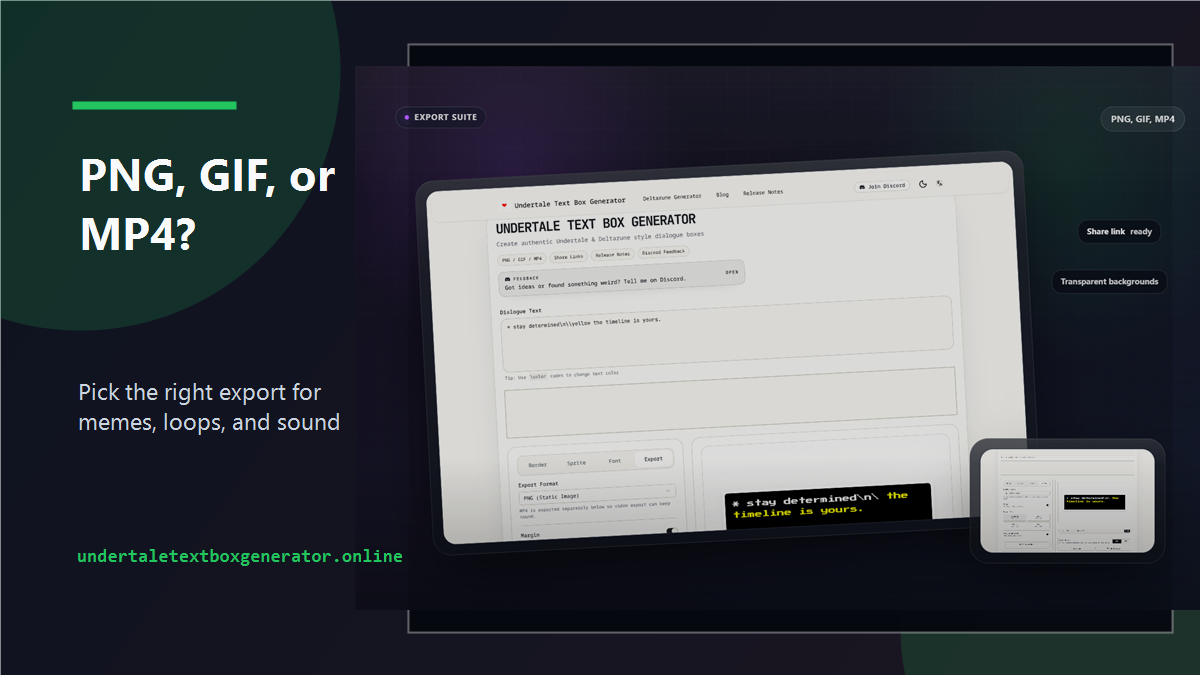
Quick Rule: Match the Format to the Place It Will Be Seen
Do not choose an export format because it sounds more advanced. Choose it based on where the result will live.
Use PNG when the final result should behave like a clean image. Use GIF when the typing motion is part of the joke. Use MP4 when sound, smoother playback, or social video sharing matters.
A simple line can become three different posts:
* i opened the folder.
\yellow it opened back.
As a PNG, it reads like a fake screenshot. As a GIF, the second line can land slowly. As an MP4, the typing sound makes it feel closer to a short fan scene.
The words are the same, but the format changes the mood.
Use PNG for Clean Screenshots and Fast Sharing
PNG is the safest export when you want the box to stay sharp. It is best for:
- still memes
- Discord image replies
- wiki-style examples
- image posts
- design comparisons
- transparent or clean layout work
PNG also makes mistakes easier to spot. If the text is too small, too long, or too close to the edge, a still image shows it immediately.
Before exporting PNG, check:
- The full line is readable at normal phone size.
- The portrait does not crowd the first word.
- The border style matches the scene.
- The color tag is not doing unnecessary decoration.
For example:
* the puzzle was solved.
* unfortunately,
\yellow so were you.
That line works as a PNG because the reader can take it in at once. The turn is visible immediately, and the yellow line gives the eye a place to land.
PNG is also the best format when you plan to place the text box inside another design. If you are making a comic panel, thumbnail, reference sheet, or post collage, start with PNG and keep the output clean.
Use GIF When Motion Is the Joke
GIF is not just "PNG with animation." It is a different reading experience. The viewer waits for the sentence. That waiting can make a simple line funnier or more tense.
Use GIF for:
- looping reaction posts
- short punchline reveals
- fake dialogue moments
- animated replies where audio is not needed
- posts that should restart automatically
GIF works best with short text. If the line takes too long, the loop becomes tiring. A strong GIF usually has one setup and one reveal.
Good GIF structure:
* i checked the save.
\yellow it checked me first.
Risky GIF structure:
* i checked the save file in the folder after restarting the game and then something strange happened that made me nervous.The second version may be understandable, but it asks the viewer to wait too long before anything happens. Split it into multiple boxes or rewrite it.
Before exporting GIF, press Play and watch the full typewriter pass. Do not only check whether the animation works. Check whether the timing feels worth watching twice.
Use MP4 When Sound or Social Video Matters
MP4 is the right path when the typing sound is part of the scene. It is also more practical for platforms that prefer video uploads over GIF files.
Use MP4 for:
- fan edits
- short scene mockups
- TikTok or YouTube Shorts assets
- smoother dialogue clips
- posts where typing audio makes the line feel alive
MP4 can make a line feel more complete, but it also exposes weak pacing. If the text is too long, the sound will make the drag more obvious.
Try a line like:
* please do not touch the switch.
\yellow it is already deciding.
The first line sets the warning. The second line gives the sound a reason to build. That is the kind of writing that benefits from MP4.
If you are making a Deltarune-specific clip, start with the Deltarune text box generator so the border and sprite direction are closer before export.
Prepare the Text Before Touching Export Settings
Export settings should polish a scene, not rescue it. Before choosing PNG, GIF, or MP4, make the text itself stable.
Use this order:
- Write the line.
- Pick the portrait.
- Choose the border and font.
- Preview the animation.
- Export the format that matches the destination.
That order prevents a common mistake: exporting a high-quality file of a weak line.
If the line is mostly for a still image, write it so the full joke is visible at once. If the line is for animation, write it so the reveal arrives at the end. If the line is for MP4, listen to the pacing and remove any word that slows the scene down without adding meaning.
Check Canvas Size and Readability
The export panel includes size choices because not every post needs the same canvas. Bigger is not always better. A large output can still fail if the text is too small after upload compression.
For still posts, export a size that keeps the text crisp after the platform resizes it. For GIFs, avoid making the file heavier than the scene deserves. For MP4, think about where the clip will be placed in the final edit.
Readability check:
- Can the smallest word be read on a phone?
- Does the portrait still look intentional?
- Is there enough black space around the dialogue?
- Does the colored text remain legible after compression?
If the answer is no, simplify the box. Shorter text usually solves more problems than larger export dimensions.
When to Use Each Format for Common Scenarios
For a fake screenshot, use PNG. The goal is clarity and sharpness.
For a reaction meme, use GIF if the reveal matters. If the joke works instantly, PNG may be better.
For a fan edit, use MP4. It moves cleanly into a video timeline and keeps typing sound attached.
For a Discord reply, use PNG for speed or GIF when the loop is the point.
For a Deltarune scene mockup, use MP4 if the mood depends on timing. Use PNG if you are showing a single line or comparing styles.
For a custom sprite showcase, use PNG first. It lets people inspect the portrait without motion hiding details.
Common Export Mistakes
The first mistake is exporting GIF when the line has no reveal. Motion should add timing, not just movement.
The second mistake is exporting MP4 before checking audio expectations. If sound matters, make the text short enough for the typing effect to feel deliberate.
The third mistake is using PNG for a line that depends on suspense. If the second phrase needs to arrive late, animation is the stronger choice.
The fourth mistake is ignoring platform behavior. Some sites recompress GIFs heavily. Some convert uploads to video. If you are posting somewhere specific, test one small export before making a polished version.
Final Recommendation
Choose PNG for clean stills, GIF for looping reveals, and MP4 for sound or video workflows. That is the practical split.
If you are still learning the editor, read the main Undertale generator walkthrough. If the line itself feels weak, start with the dialogue writing guide before changing export settings.